LightBurn nesting without Pro, including onto offcuts: True Nest, Quick Nest and Nestbolt compared
As of 2026-11-05, True Nest in LightBurn 2.2 (nesting by each shape's real outline) needs a Pro licence: $199 new, or a $100 upgrade from Core's $99 (US dollars), and LightBurn's docs describe both True Nest and Core's Quick Nest (which packs each object's bounding rectangle) as nesting into a rectangle you draw; its feature board says nesting around used areas of a sheet is "Completed for v2.3". In our test on 2026-11-02, the free Nestbolt v0.2.0-alpha.1 preview nested a three-layer LightBurn project onto a traced offcut (13 ornaments), a partly used sheet with two holes (11) and a full 12 × 12 inch sheet (18). It wrote each sheet back as an editable .lbrn2 with the layer settings unchanged, checked by our own script. Nestbolt's LightBurn support is a preview feature. Core also has SVGNest (External Tool), which opens the SVGnest.com website in your browser to nest an exported SVG. Method and data are below.
We make Nestbolt. We did not run LightBurn, so this page makes no claim about how densely True Nest or Quick Nest packs. Everything about LightBurn comes from its own documentation, release post, price pages and forum, read on 2026-11-02 (the docs, prices and release post re-checked on 2026-11-03 and 2026-11-05, and the 2.2.01 patch notes read on 2026-11-05), and its feature-request board, read on 2026-11-03 and 2026-11-05, all linked below. Last checked: 2026-11-05.
Your nesting options as a LightBurn Core user
| Option | Licence and price | Nests by | What it nests into | Rotation | Where it runs |
|---|---|---|---|---|---|
| True Nest (LightBurn 2.2) | LightBurn Pro only: $199 one-time with a year of updates, or a $100 Core-to-Pro upgrade, which "does not add a year of updates", so check that your licence's update year covers 2.2; a two-week Trial Pro from Help → License Management | The objects' actual contours | A rectangle you draw and select as the container; Multipage adds pages with copies of it | "Allowed Orientations" from 1° steps to 90° steps, or locked | Inside LightBurn, locally |
| Quick Nest (LightBurn 2.1 and later) | Core and Pro | Each object's bounding rectangle | An axis-aligned rectangle you draw and select; Multipage adds pages with copies of it | 90° steps, or locked | Inside LightBurn, locally |
| SVGNest (External Tool) | Core and Pro | Actual shapes, on SVGnest.com | "a container shape", usually one the size of your material | Not covered on LightBurn's page | LightBurn exports an SVG, you nest it on SVGnest.com in your web browser and import the result; LightBurn's comparison table marks it as needing the internet |
| Nestbolt (ours) | Free, MIT licence. LightBurn projects need the v0.2.0-alpha.1 preview (stable v0.1.0 takes SVG and DXF only) | Actual outlines | Rectangular sheets, or an offcut's outline with holes in it, plus areas to keep clear | Free, stepped or a list of angles (its README); this test used 0°, 90°, 180° and 270° | Command line and MCP server on Windows x64, Linux x64 and macOS on Apple silicon, and a browser app that runs on your computer (nothing is uploaded); you move the files between it and LightBurn |
Nestbolt's README says small parts can go inside the holes of larger ones (this test placed none there); LightBurn's nesting pages don't say either way for its tools.
On the container: True Nest's and Quick Nest's getting-started steps both begin "Create a rectangle to use as a container". Both also offer Multipage and Lock Inner Objects, which keeps inner shapes with the shape around them without grouping. SVGNest (External) asks for "a container shape", and its page doesn't say it must be a rectangle; it also says shapes inside other shapes are not exported but are moved back with them after the import. When a user asked in September for nesting inside irregular scraps, LightBurn staff member Joe Spanier replied on 22 September 2026, during the 2.2 early access. He wrote that they have discussed arbitrary sheet shapes and "realize it would be useful", but that it is "even more complicated" than the current True Nest and they have no specific roadmap for it (forum post). LightBurn said more on 1 November 2026, on its feature-request board. A request to let the nesting functions "avoid certain areas of an existing partially-used sheet", with camera-made no-go zones, was marked "Completed for v2.3" (post 5197). A request to nest inside circles and other shapes, because True Nest "only supports nesting within squares and rectangles", was marked completed too, with the reply "We should have an update to nesting coming in v2.3" (post 5193). So LightBurn 2.3 is set to nest around used areas of a sheet, and LightBurn has marked the request for other container shapes completed as well; 2.3's date, its exact scope and whether it needs Pro are unknown. LightBurn's 2.2 release post calls True Nest "the first LightBurn design/layout feature that is limited to Pro licenses only".
The test project: six engraved ornaments in a LightBurn project
The cut outlines are the six ornament designs from our ornament example, each about 3 inches tall with a hanging hole. A script turned them into a LightBurn project, engraved-ornaments.lbrn2, with one group per design and three layers in LightBurn's default colours:
- CUT (layer 00, Line, black): the outline and the hanging hole, with curves kept as Bézier curves.
- ENGRAVE (layer 01, Fill, blue): a star on the face of each ornament.
- SCORE (layer 02, Line, red): a ring around the hanging hole.
The layer settings are placeholders that show they come through unchanged (CUT 10 mm/s at 70%, ENGRAVE 200 mm/s at 25%, SCORE 100 mm/s at 15%). Set your own for your machine. LightBurn itself did not open or save this file; Nestbolt's own tests with projects saved by LightBurn are in its LightBurn notes.

engraved-ornaments.lbrn2: bauble, star, tree, bell, snowflake and stocking.Measured: one full sheet and two offcuts
All runs used the v0.2.0-alpha.1 Windows x64 release (its SHA-256 and build provenance checked), on a Windows desktop PC, in repeatable mode at seed 0 with 2 mm between parts and a 30-second budget (120 seconds where the table says so). "Place what fits" is Nestbolt's fill_area mode, a quick layout that fills as much area as it can from the copies offered. "Most found" is the default mode, which must place every part: we raised the number of ornaments, cycling through the six designs, until it could no longer place them all.
| Stock | Material | Edge spacing | Place what fits | Most found |
|---|---|---|---|---|
| Full 12 × 12 inch sheet (5 mm margins) | 92,903 mm² | 1 mm | Not used | 18 of 18 requested (3 of each design) in 3.3 s, covering 45.6% of the sheet; we did not push this count higher |
| Traced offcut (about 390 × 278 mm across) | 71,384 mm² | 5 mm, to allow for tracing error | 12 of 24 offered in 0.9 s: 4 each of bauble, bell and stocking, the largest designs, covering 47.4% | 13 (3 baubles, 2 of each other design) in 1.3 s, covering 44.3%; 14 were not found even with 120 s |
| Partly used 12 × 12 inch sheet with two holes | 66,560 mm² | 2 mm | 11 of 18 offered in 1.1 s, covering 42.6% | 11 in 1.7 s, covering 38.7%. 12 failed with the 30 s budget; with a 120 s budget, 12 (2 of each) were placed 6.1 s in, covering 42.4%. 13 were not found with 120 s |
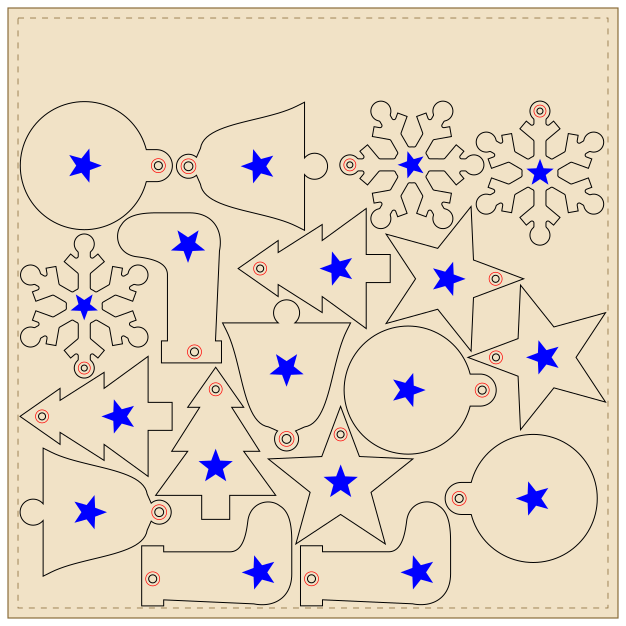
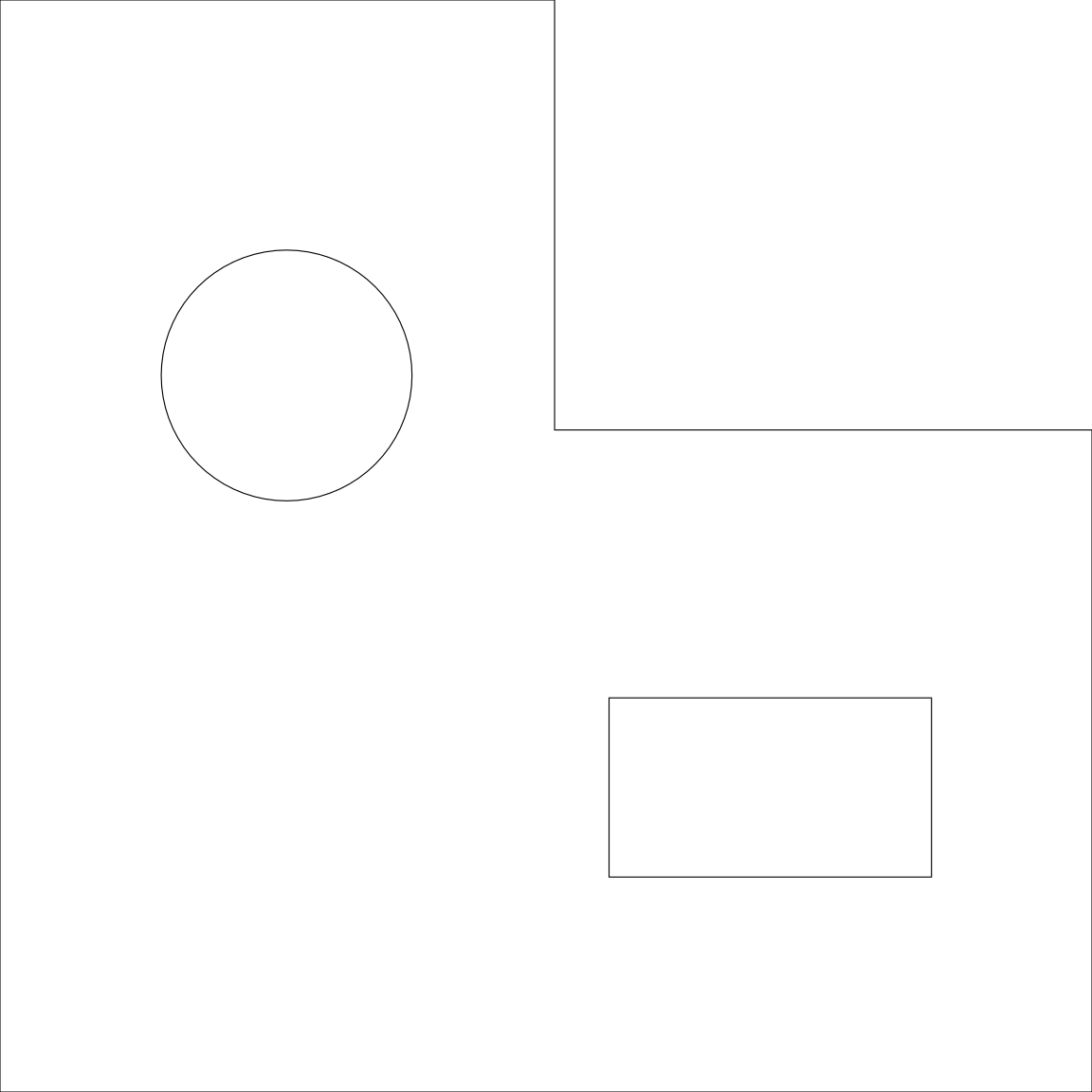
full-sheet-18-sheet.lbrn2. The dashed line is the 5 mm margin.The offcut is the plywood offcut from our scrap example: its outline was traced from a computer-rendered picture with Maskbolt, so the edge spacing of 5 mm covers the tracing error measured there (at most 4.3 mm). The partly used sheet was drawn for this test to look like a 12 × 12 inch sheet after an earlier job: a 150 × 120 mm corner, a 70 mm disc and a 90 × 50 mm plate are gone. Its outline is drawn exactly rather than traced, so 2 mm from the edges is enough.
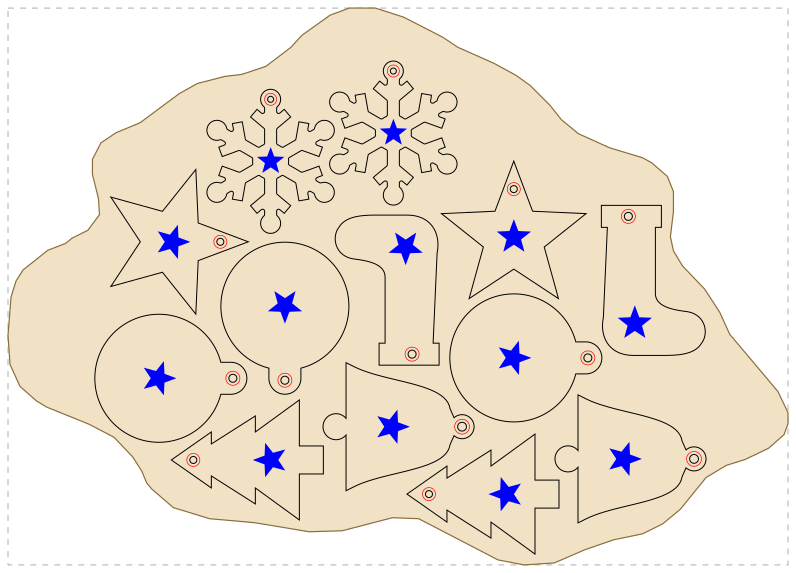
traced-offcut-13-sheet.lbrn2. The dashed rectangle is the offcut's bounding box.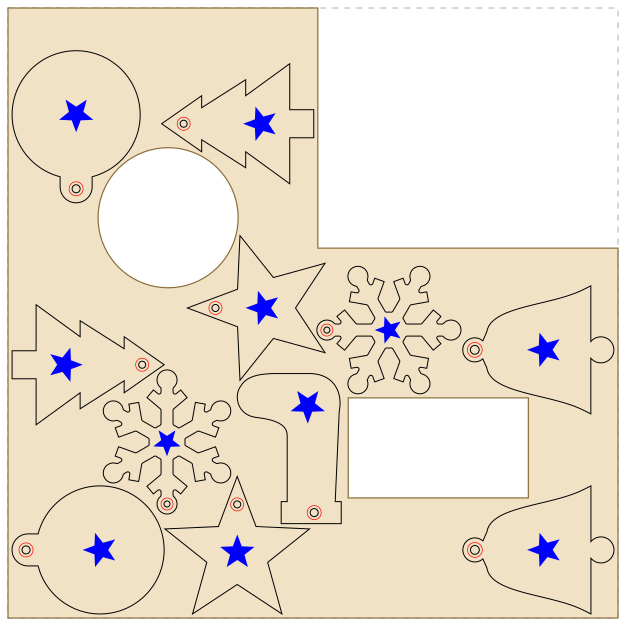
partly-used-11-sheet.lbrn2.What came back in LightBurn's format
A separate script, check.py, read the input project and every output sheet itself and uses none of Nestbolt's code. On all six layouts above:
- Every ornament is a copy of a group in the project, with the same three children in the same order, on the same layers, and their path data unchanged. The number of copies equals the request in the "most found" layouts and never exceeds what was offered in the "place what fits" ones.
- One move per ornament. Every point and curve handle of an ornament, on all three layers, moved by the same rotation (0°, 90°, 180° or 270°) and shift, to within 0.000001 mm. Nothing was mirrored, so each star and ring stays where it was on its part.
- Layer settings unchanged. The three layers' settings are byte-for-byte the same as in the input. Each sheet adds one thing: a rectangle on LightBurn's T1 tool layer, named SHEET, which marks the stock and is not cut. On an offcut it is the outline's bounding box, not its shape. Leave it out with
--sheet-outline false. - Geometry. Stars and rings lie on their ornament and clear of its hole, and parts keep the requested spacing from each other and from the stock's edges and holes. The curves were sampled, so these distances are accurate to about 0.01 mm; a second check with ten times finer sampling moved them by at most 0.006 mm.
- Repeatable. We ran each of the six request files behind the table twice, and each pair of sheets and layouts was byte-identical.
One thing we did not expect: on the traced offcut, Nestbolt kept parts as far from each other as from the edge, using whichever of the two settings is larger. With a 5 mm edge spacing, the closest two ornaments are 5.01 mm apart, not 2 mm. In extra runs on the same offcut, edge spacings of 1, 2 and 3 mm gave closest gaps of 2.01, 2.01 and 3.01 mm. On the full rectangular sheet, a 4 mm edge spacing left the parts 2.02 mm apart. So on an offcut, use the smallest edge spacing your outline allows. The four probe requests are listed in the data notes, and their numbers are in results.json.
How to nest your LightBurn project onto an offcut
LightBurn project nesting is a preview feature of Nestbolt (v0.2.0-alpha.1 and the browser app).
- In LightBurn, group each part with its engraving and score lines, then save a copy of the project. Nestbolt moves each group as one piece. Text without embedded outlines must be re-saved in LightBurn or converted to paths first (preparation notes).
- Draw or trace the usable outline of the offcut, with any holes, and export only that outline as SVG or DXF.
- In the browser app, open the
.lbrn2project, set the quantities, and under the sheet size choose the outline file as Remnant outline. Set the part and edge spacing, nest, and download the LightBurn sheet. - Open the sheet in LightBurn and check it before you cut. The T1 rectangle marks the offcut's bounding box, moved to the origin, not its shape. To see the shape, import your outline file and line its bounding box up with the T1 rectangle. If your laser's origin is not the bottom-left corner, check that the layout isn't flipped: Nestbolt's LightBurn notes say this must be checked in LightBurn. We did not open the sheets in LightBurn.
We ran step 3 in the live browser app on 2026-11-02, in a headless Chromium with a fresh profile, using the traced offcut's existing outline file. We opened the project, set 2 of each design, and chose that outline as the remnant outline, with 2 mm part and edge spacing. The app placed 12 of 12 in its 30-second run, reported the check as valid, and downloaded browser-traced-offcut-12-sheet.lbrn2, which passed the same independent check. The hosted app is built from Nestbolt's main, whose engine (crates/) and app code (web/src/) are unchanged since v0.2.0-alpha.1. The release notes, written on 16 October, still say the hosted app is on v0.1.0; that has changed since.
On the command line, give the offcut as outline_mm in the request: its outer ring and holes in millimetres, Y up, inside width_mm × height_mm. See the traced-offcut request. A SHEET drawing of the partly used sheet is in partly-used-sheet.svg (we checked it with the command-line import, not in the browser app), and the traced offcut is in traced-offcut.svg.

When to use True Nest, Quick Nest or SVGNest instead
- You already have Pro, or the $100 upgrade is fine. True Nest nests what you select in your LightBurn workspace, with no files to move between programs. LightBurn says a few sheets' worth of savings should pay for it, and the two-week Trial Pro lets you check that on your own jobs.
- Finer rotation. True Nest's Allowed Orientations go down to 1° steps. We tested Nestbolt's LightBurn route with quarter turns only.
- Loose artwork and text. LightBurn's Lock Inner Objects, in both True Nest and Quick Nest, keeps inner shapes with the shape around them without grouping. Nestbolt attaches loose artwork to a part only when the artwork's bounding rectangle lies wholly on that part's material. In our layered-kit example, an ungrouped engraved ring around a hole was nested as a separate piece, with no warning, so group parts first. Nestbolt also cannot nest text that has no embedded outlines until it is re-saved.
- A finished feature. True Nest ships in LightBurn 2.2 (2.2.00, now patched to 2.2.01), while Nestbolt's LightBurn support is a preview release, and LightBurn did not open the files in this test.
- You can wait for LightBurn 2.3. LightBurn marked nesting that avoids used areas of a sheet "Completed for v2.3", and marked a request to nest inside circles and other shapes completed, saying it "should have an update to nesting coming in v2.3" (its feature board, 1 November 2026; see above). If nesting around used areas of a sheet, or inside another container shape, is what you need and you can wait, 2.3 may cover it inside LightBurn. Its release date, and whether its nesting needs Pro, are unknown.
- Mostly rectangular parts. LightBurn's docs say the difference between True Nest and Quick Nest is small when parts are close to rectangles. Quick Nest is in Core and is fast.
- You are on Core and a website round trip is fine. SVGNest (External) nests by real shape at no extra cost, into a container shape you select, and LightBurn's page says shapes inside your parts are moved back with them after the import. We did not run it.
Nestbolt fits when you want nesting by real outline without Pro, nesting onto an offcut or a partly used sheet today, or one editable LightBurn file per sheet from the command line or an AI agent, and a preview feature is acceptable.
Limits of this test
- LightBurn project nesting is a preview feature, and LightBurn did not open these files during this test. Open each sheet in LightBurn and look at it before you cut.
- One project, three stocks, 30-second budgets (120 seconds for the partly used sheet's 12 and 13 and the offcut's 14), seed 0, one build. Another budget, seed, build or platform can nest differently; failing to find 14 or 13 shows the limit of this search, not that they cannot fit.
- The traced offcut comes from a computer render, not a phone photo. Measure a real offcut before you rely on a traced outline, and test-cut one part first.
- Kerf in a layer's settings does not change part spacing. Set the spacing to cover your kerf.
- Nestbolt's own LightBurn tests used projects saved by LightBurn 2.1.01. We did not test a project saved by 2.2, or a multi-page one.
Reproduce it
With the v0.2.0-alpha.1 release, in a new folder holding engraved-ornaments.lbrn2, the request files and check.py (Nestbolt refuses to overwrite existing output):
nestbolt import engraved-ornaments.lbrn2 --output library.jsonlists the three layers and six parts,engraved-ornaments-unit-1to-6. The request names parts by these IDs, which come from the file name.nestbolt nest --library engraved-ornaments.lbrn2 --request full-sheet-request.json --out-dir out-full --seconds 30 --repeatablewritesengraved-ornaments-sheet-1.lbrn2,layout.json,report.json,job.jsonandrequest.json. The same command withtraced-offcut-request.jsonorpartly-used-request.jsongives the "place what fits" layouts, and withall-traced-offcut-13-request.jsonorall-partly-used-11-request.jsonthe "most found" ones. For the 12 on the partly used sheet, useall-partly-used-12-request.jsonwith--seconds 120.python check.py engraved-ornaments.lbrn2 full-sheet-request.json out-full/engraved-ornaments-sheet-1.lbrn2runs our check (it needs Shapely).
All numbers are in results.json. The scripts that made the project, searched for the most ornaments, drew the figures and drove the browser are kit.py, maxfit.py, render.py and browser_flow.mjs. The ornament outlines come from our ornament example; the project, requests and sheets were made for this page. All are MIT licensed, like Nestbolt.
How we checked
- The searches. We ran five searches a LightBurn user might make, such as "LightBurn nesting without Pro" and "nest LightBurn project onto scrap offcut irregular material". Nestbolt appeared in none. The results were LightBurn's forum and docs, laser-vendor help pages and listing sites, and one summary said it found no free nesting tool that reads
.lbrn2files and keeps their layers. The queries and results. - LightBurn. We read its nesting docs (True Nest, Quick Nest and SVGNest pages), the 2.2 release post, the licence page and the upgrade page ($100.00; it "does not add a year of updates"), and forum topic 192508, on 2026-11-02; the docs, prices and release post again on 2026-11-03, unchanged on every point this page uses; and its feature board's posts 5193 and 5197 on 2026-11-03. On 2026-11-05 we read the docs, prices, release post and posts 5193 and 5197 again, unchanged on every point this page uses, and the notes for the 2.2.01 patch (2 November), which list no nesting or licence change. LightBurn was not run.
- Nestbolt. The release archive was downloaded from GitHub, checked against its
SHA256SUMSand its build attestation, and run as described above. - Refresh. This page is re-checked every 30 days, or sooner when LightBurn or Nestbolt releases.